 PEX
How to Move Your Virtual Pet to a New Phone Without Losing It
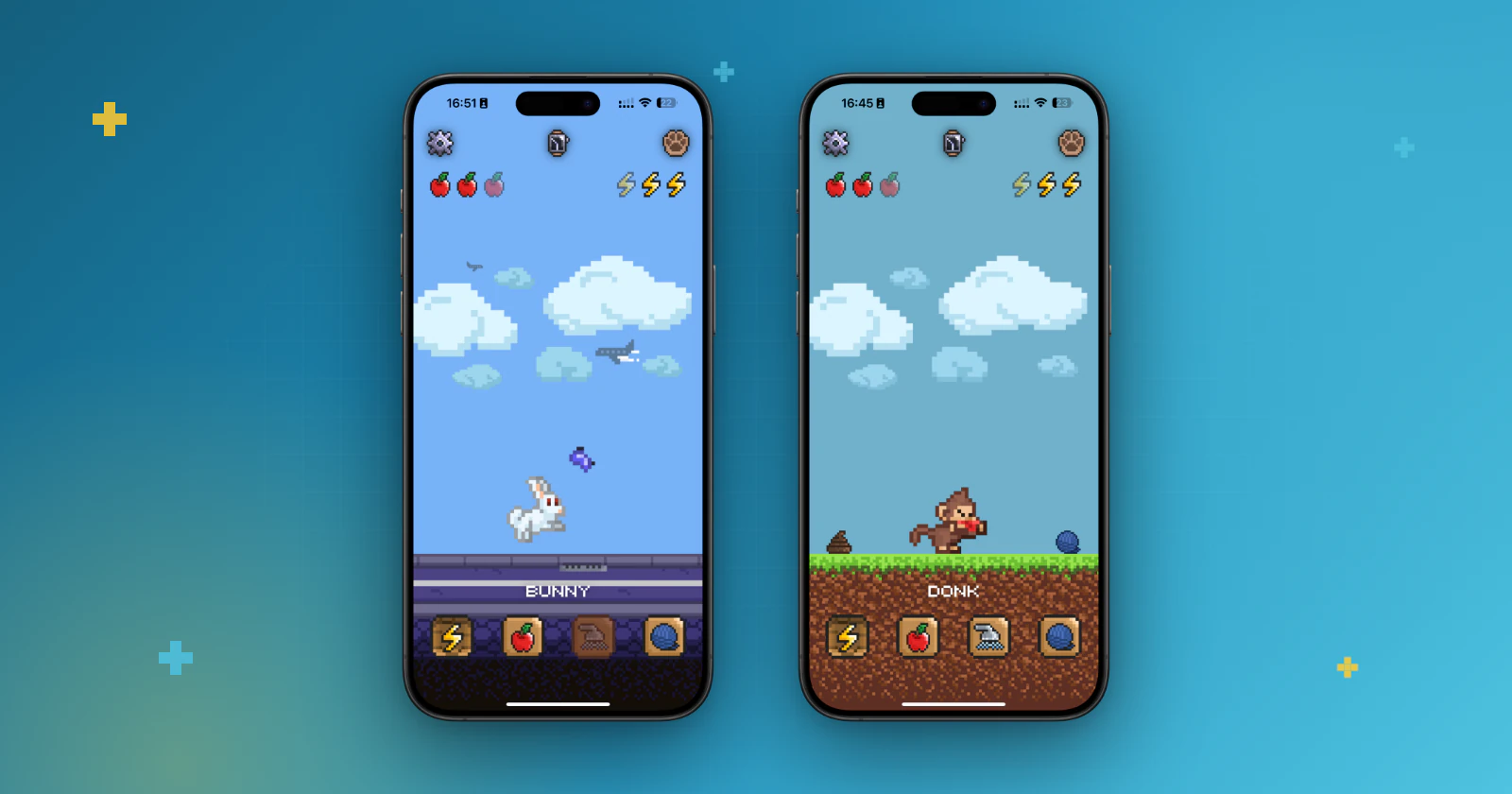
Short answer: you won't lose your pet if Cloud Backup is on. Before you switch, check that it's working on your old phone. Then sign in on the new phone with the same Apple ID or Google account, install Pex and open it, and your Pex and its progress come back.
A new phone shouldn't mean starting over with the companion you've been raising. Pex saves your pet to your own cloud account: iCloud on Apple devices and Google Drive on Android. Here is what to check before you switch, and what to do on the new phone.
How Cloud Backup works
With Cloud Backup on, your Pex and its progress are saved to a private, app-only space in your own account. If you made a pet with Pex AI, that includes its generated images and animations.
| iPhone | Android | |
|---|---|---|
| Saved to | iCloud | Google Drive |
| Sign in with | The same Apple ID | The same Google account |
| Where to check in Pex | settings, under iCloud | Settings → Cloud |
| Storage used | Your iCloud storage | Your Google Drive |
Before you change phones
On iPhone:
- Open Pex and tap the gear button to open settings.
- Under iCloud, make sure Sync is on.
- Look at Status. It tells you whether your pet has synced and when: Pex syncs automatically when the app launches, so opening it on the old phone one last time is a good idea.
- In your iPhone's Settings, check that iCloud is enabled for Pex and that you have free iCloud storage.
On Android:
- In Pex, go to Settings → Cloud and make sure Cloud Backup is on.
- Check which Google account you're signed in with. You'll need the same one on the new phone.
- Check that your Google Drive has free space.
Whatever your phone, don't delete Pex's backup while you're moving. Removing its data from iCloud storage, or tapping Clear Cloud Data on Android, permanently deletes your backed-up pet data.
On your new phone
- Sign in with the same Apple ID (iPhone) or the same Google account (Android).
- Install Pex from the App Store or Google Play.
- Open Pex and give it a minute: sync can take a moment on first launch.
Once your pet is back, you can put it where you'll see it again, on your iPhone Home Screen or Android Home Screen. Then keep up with its needs: here's how to take care of your virtual pet.
If your pet doesn't show up
On iPhone: go through these in order.
- Check that you're signed in to the same Apple ID on both phones, that iCloud is enabled for Pex in your iPhone's Settings, and that Sync is on in Pex.
- Check that you have free space on iCloud storage.
- In Pex, open settings, tap Details under iCloud and, in Manual Sync, tap Download from iCloud or Full Sync.
On Android: check that Cloud Backup is on in Settings → Cloud, that you're signed in with the same Google account on both devices, and that your Google Drive has free space.
Still missing? Contact support and we'll help.
What about Premium?
Premium comes back through your store purchase, so you don't pay again:
- On iPhone, iPad or Mac: open settings and tap Restore purchases. This re-links your existing purchase without charging you again.
- On Android: there's no restore button. Pex checks your Google Play purchases every time it opens, so make sure the Play Store is signed in with the Google account you used to buy Premium, then close and reopen Pex.
Switching between iPhone and Android
Cloud Backup uses iCloud on Apple devices and Google Drive on Android, so the steps above are for moving between devices of the same kind. If you're going from iPhone to Android or the other way around, write to support before you switch. New to Pex? Learn more about the Pex virtual pet app.
FAQ
Will I lose my pet if I change phones?+
No. With Cloud Backup on, your Pex and its progress are saved to iCloud on Apple devices (sign in with the same Apple ID) or to Google Drive on Android (sign in with the same Google account), so they come back on your new phone.
How do I transfer my virtual pet to a new phone?+
Check that Cloud Backup is on and working on your old phone. On the new phone, sign in with the same Apple ID or Google account, install Pex and open it. Give it a minute, because sync can take a moment on first launch.
Why didn't my pet come back on the new phone?+
Usually it is the account or the storage. Check that both phones use the same Apple ID or Google account and that your iCloud or Google Drive has free space. On iPhone, you can also open Details under iCloud in settings and tap Download from iCloud or Full Sync.
Do I have to buy Premium again?+
No. On iPhone, iPad or Mac, tap Restore purchases in settings. On Android, Pex checks your Google Play purchases every time it opens, so make sure the Play Store uses the Google account you bought Premium with.
Does Cloud Backup use my iCloud or Google Drive storage?+
Yes. Your pet data is kept in a private, app-only space in your own iCloud or Google Drive account, so you need free space there for the backup to work.