 PEX
How to Turn a Photo of Your Pet into Pixel Art with AI
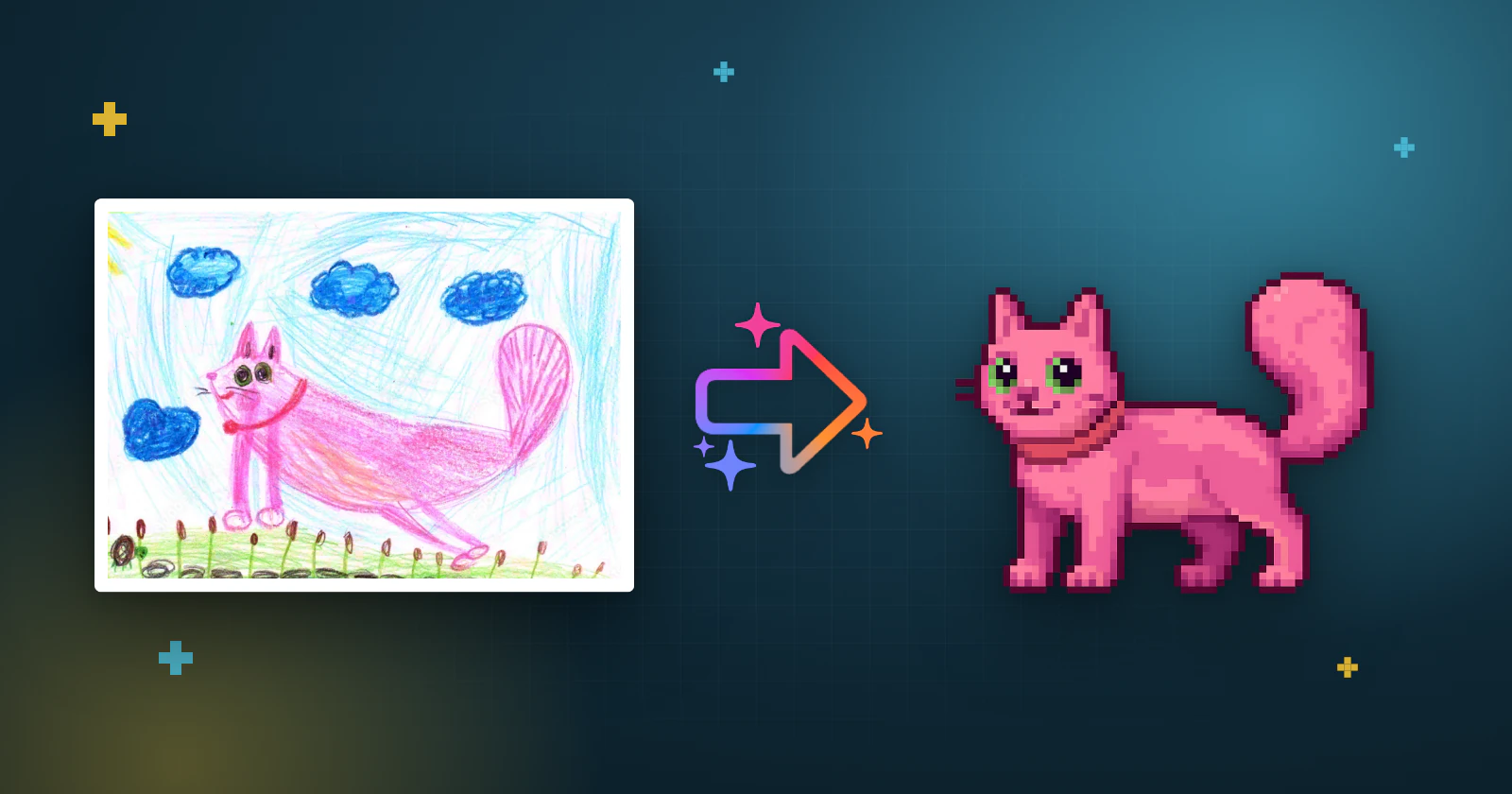
Short answer: in Pex, open the animals screen, tap the + in the AI section and pick a photo of your pet, a drawing or a toy. Pex AI turns it into a pixel-art pet with six animations, and you name it and adopt it as your virtual pet.
Most pixel-art generators give you a still picture. Pex AI goes one step further: the pixel art becomes a living, Tamagotchi-style pet that eats, sleeps, plays and lives on your Home Screen, Lock Screen and Apple Watch. Here is how to make yours.
What you can turn into a pixel pet
- A photo of your real pet: your dog, cat, rabbit or any other animal.
- A drawing: a child's drawing or your own sketch.
- A toy or a keychain: a plush, a figure or the little friend hanging from your bag.
Only use images you own or have permission to use, and avoid images with copyrighted content, violence or nudity.
Step by step on iPhone
- Download Pex from the App Store and open it.
- On the main screen, open the animals screen. In the AI section, tap the + button.
- On the Pex AI screen, tap create. The first time, read the key points of the Terms of Use and tap Agree.
- Select photo: take one with Camera or pick one from your Library. Under What is in the photo?, choose Animal or Character, then tap Next.
- Base image: Pex AI draws the pixel-art version of your pet. If you like it, tap Bring it to life!. If not, tap Recreate to try again.
- Animations: Pex AI creates the six animations (idle, eating, sleeping, cleaning, playing and running). Keep the app open while it works. Animations can differ from each other, and you can recreate the ones you don't like.
- Final: give your pet a name and a breed, leave Backup & Sync on and tap Adopt.
Creating a pet uses one of your Pex AI generations. You can see how many you have on the Pex AI screen, get more there, or earn a free one by sharing Pex with friends. Pex AI is also available in the Android app.
Tips for a better pixel pet
- One subject per photo. If two pets are in the picture, crop it so only one is left.
- Show the whole body. A full-body shot gives the AI more to work with for the playing and running animations.
- Good light, simple background. A bright photo against a plain wall or floor keeps colors and markings clear.
- Bold drawings work best. Clear outlines and strong colors come through well in pixel art.
- Toys and keychains: take the photo up close, so the toy fills most of the frame.
After you adopt it
Your new pet has the same four needs as every Pex: hunger, happiness, cleanliness and sleep, which change through the day. Put it where you will see it: on your iPhone Home Screen, on your Lock Screen or on your Apple Watch, or on your Android Home Screen. With Backup & Sync on, it syncs to your other devices through iCloud. Want the bigger picture? Read what Pex is and how it works.
FAQ
Can I turn a photo of my dog or cat into pixel art?+
Yes. In Pex, choose a photo of your pet and Pex AI turns it into a pixel-art version with six animations, which you can adopt as a virtual pet.
Can I use a drawing instead of a photo?+
Yes. A child's drawing, your own sketch, a toy or a keychain all work. Choose Character instead of Animal when Pex asks what is in the photo.
Is creating a pet with Pex AI free?+
Pex is free to download. Creating a pet with Pex AI uses a generation: you can get generations on the Pex AI screen or earn a free one by sharing Pex with friends.
What if I don't like the result?+
Tap Recreate on the base image to get a new version, and recreate any animation you don't like. The number of tries is limited.
Will I lose my AI pet if I change phones?+
No, as long as Backup & Sync is on. Your pet is backed up to iCloud on Apple devices or Google Drive on Android, and comes back when you sign in with the same account.
Tamagotchi is a trademark of Bandai. Pex is an independent app and is not affiliated with or endorsed by Bandai.