 PEX
How to Add a Virtual Pet Widget to Your Android Home Screen
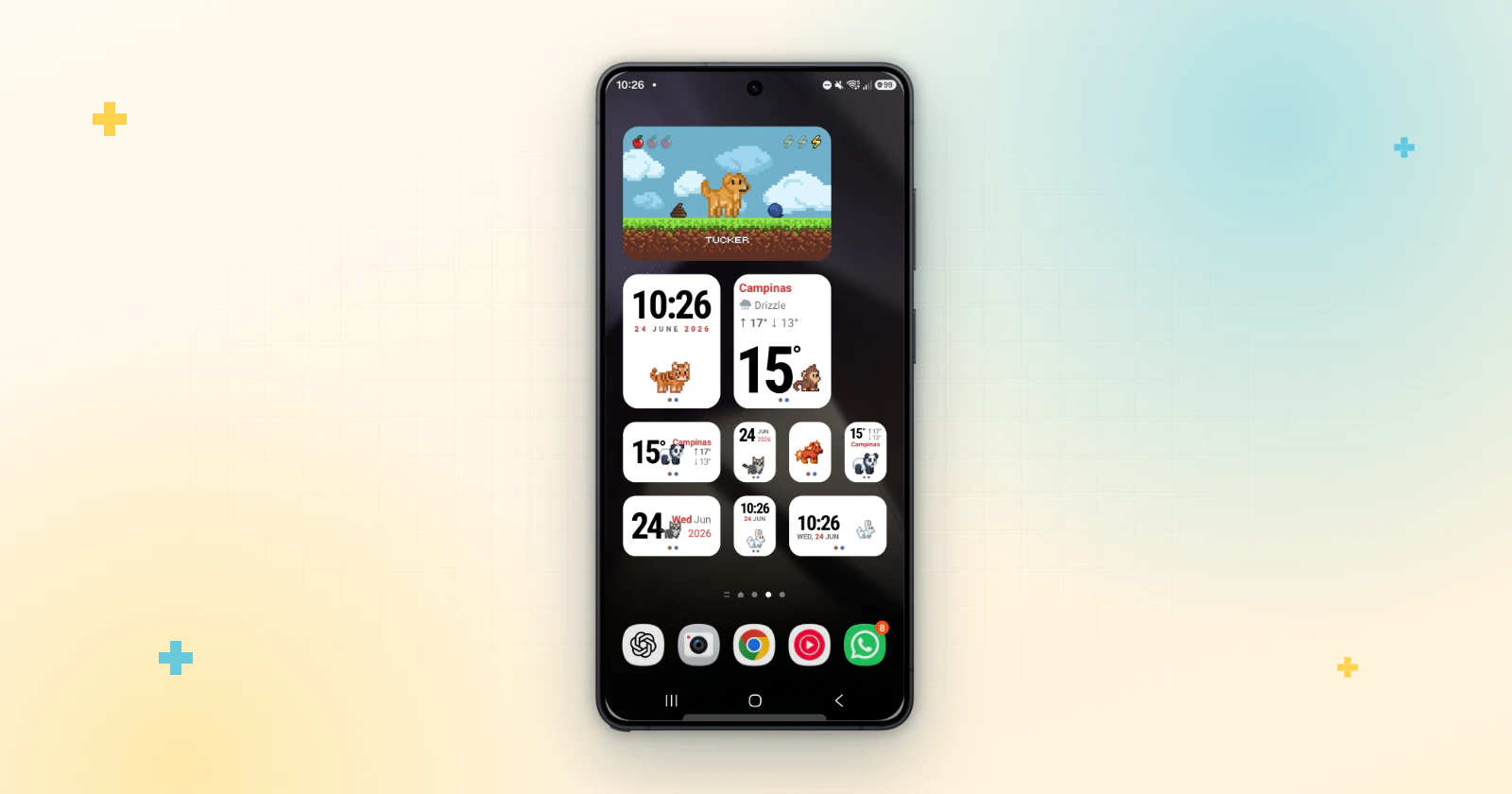
Short answer: install Pex from Google Play and create your pet. Then touch and hold an empty spot on your Home Screen, tap Widgets, find Pex, and drag the widget you like onto your screen.
Pex puts a Tamagotchi-style pixel-art pet on your Android Home Screen. The widget is animated, so your pet moves right on your screen without opening the app.
1. Create your pet in Pex
- Download Pex from Google Play and open it.
- Adopt a pet, or create your own with Pex AI from a photo of your real pet, a drawing, a toy or a keychain.
2. Add the Pex widget to your Home Screen
- Touch and hold an empty spot on your Home Screen.
- Tap Widgets.
- Scroll or search to find Pex.
- Touch and hold the widget you want and drag it onto your Home Screen.
- If a settings screen opens, choose your options and tap Save.
The names of these menus can change a little between phone brands, but every Android phone has a Widgets option when you touch and hold the Home Screen.
Which Pex widget to choose
- Pex: your pet on the Home Screen. You can resize it.
- Pex Portrait: an animated portrait of your pet, in any size.
- Pex Clock and Pex Date: the time or the date with your pet, as a large widget, a small strip or a square.
- Pex Weather: the current weather with your pet. Available with Premium, and it uses your location only to show the local weather.
In the settings screen you can turn on a transparent background or a capsule shape, and with Premium choose a different animal for each widget.
Pex widget vs. a classic Tamagotchi
Pex keeps the daily care loop of a Tamagotchi, but your pet lives on the phone you already carry.
| Classic Tamagotchi | Pex on Android | |
|---|---|---|
| Where your pet lives | A separate device you carry | Your Home Screen, as an animated widget |
| Your pet | The characters that come with the device | Adopt one, or create your own with Pex AI from a photo, a drawing or a toy |
| Daily care | Feed, play and clean | Hunger, happiness, cleanliness and sleep that change through the day |
| Extras | — | Clock, date, weather and portrait widgets |
| Changing phones | — | Cloud Backup to Google Drive |
| Price | Buy the device | Free on Google Play, optional Premium |
Tips
- Put the widget on your main Home Screen page so you see your pet every time you unlock your phone.
- Your pet's hunger, happiness, cleanliness and sleep change through the day. Feed it, play with it and keep it clean, and it reacts with its animations.
- Turn on Cloud Backup in Pex (Settings → Cloud) so your pet is saved to Google Drive.
On iPhone? Here is how to add Pex to the iPhone Home Screen and Lock Screen.
FAQ
Is there a Tamagotchi widget for Android?+
Pex is a Tamagotchi-style virtual pet for Android with animated Home Screen widgets. Install it from Google Play, create your pet and add the Pex widget from the Widgets menu of your Home Screen.
Is Pex free on Android?+
Yes. Pex is free to download on Google Play. An optional Premium upgrade unlocks extra features, such as the weather widget.
Will I lose my pet if I change phones?+
No. With Cloud Backup on, your Pex and its progress are saved to Google Drive. Sign in with the same Google account on your new phone to get them back.
Is the Pex widget animated?+
Yes. Your pet moves right on your Home Screen, so you can watch it without opening the app.
Can I add more than one Pex widget?+
Yes. You can add the Pex, Portrait, Clock, Date and Weather widgets to your Home Screen, and with Premium choose a different animal for each one.
What is the best virtual pet widget for Android?+
If you want a Tamagotchi-style pet that lives on your Home Screen, Pex is built for that: an animated pixel-art pet you can create from your own photo, with clock, date, weather and portrait widgets, free on Google Play.
Tamagotchi is a trademark of Bandai. Pex is an independent app and is not affiliated with or endorsed by Bandai.